
Written by: Lucas Mason
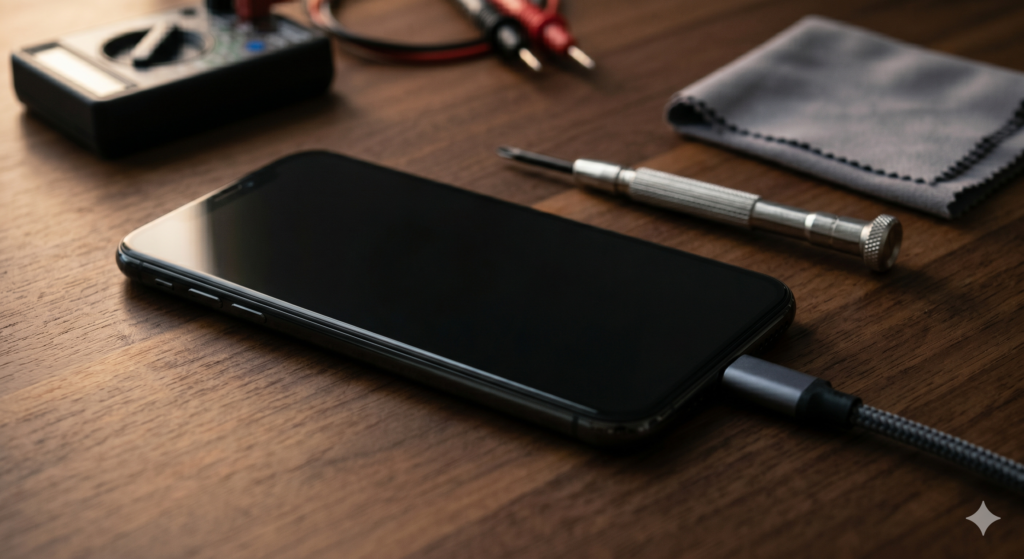
Is your phone won’t turn on at all, or is it stuck displaying the Apple or Samsung logo and refusing to boot? You are not alone. We see this issue almost every single day at our Notre Dame West shop in Montreal. People walk in panicked because their phone was working perfectly last night and now it is a black brick in their hand.
This guide will show you how to identify the real cause, try the safe fixes first, and know when the problem requires professional repair. Everything here comes from real bench work, not theory. Let us start with what is actually happening inside a phone that refuses to boot.
Section 1: Why Phones Refuse to Turn On or Get Stuck on the Logo
A phone that will not boot is failing at one of three stages. The first stage is power delivery, where the battery and charging circuit need to deliver enough current to wake the processor. The second stage is the boot loader, where firmware verifies the system before handing off to the operating system. The third stage is the OS itself, where iOS or Android loads its core services.
If your phone shows nothing at all, no logo, no vibration, no signs of life, you have a stage one problem. The most common cause is a deeply discharged battery, a damaged charging port, or in worse cases a failing power management chip. According to Apple’s official guide on devices that won’t turn on, even a working iPhone may need 10 to 15 minutes on a charger before showing any sign of activity if the battery has fully drained.
If your phone shows the logo but never gets past it, you have a stage two or stage three problem. This usually means a corrupted system file, a failed update, or in some cases a damaged storage chip. We see this often after interrupted iOS or Android updates, especially when the phone restarts mid-installation due to low battery.
The third major cause is hardware damage. A drop, a liquid spill, or sustained heat can crack solder joints around critical components. Once that happens, the phone may boot intermittently or get stuck partway through.
Section 2: How to Fix a Phone That Won’t Turn On at Home (Step by Step)
Run through these steps in order. Do not skip ahead. The order matters because each step rules out a possible cause before you move on.
Step 1: Connect to a Known-Good Charger
Plug the phone into a wall charger using a cable and brick you know are working. Do not test with a wireless charger or a car charger first. Leave it plugged in for at least 20 minutes before doing anything else. A deeply drained battery needs time to absorb enough charge to show signs of life.
Step 2: Try a Different Cable and Wall Outlet
If 20 minutes pass with no charging icon, swap the cable for a different one and try a different wall outlet. We see at least one phone a week that turns out to be a bad cable rather than a bad phone. Also gently inspect the charging port with a flashlight for lint or debris.
Step 3: Force Restart the Phone
For iPhone 8 and newer, press and release Volume Up, press and release Volume Down, then hold the Side button until you see the Apple logo. Keep holding even past where you would normally let go. For Samsung Galaxy phones, hold the Power button and Volume Down together for 15 seconds. For most other Android phones, hold the Power button for 30 seconds. A force restart bypasses normal shutdown procedures and can clear a frozen state.
Step 4: Check for Any Sign of Response
While the phone is plugged in, look for any LED, vibration, or screen flicker. Listen carefully for a soft startup chime. If you see anything at all, your battery and charging system are working. The problem is likely software. If you see nothing at all after 30 minutes plugged in, the issue is likely hardware.
Step 5: Try Recovery Mode
For iPhone, connect to a computer with Finder or iTunes open, then force restart while connected. Hold the buttons until you see the recovery mode screen with a cable and computer icon. From there you can choose Update, which keeps your data, before trying Restore which wipes everything. For Android, the recovery mode entry varies by manufacturer but usually involves holding Power and Volume Up while booting.
Step 6: Wait It Out for a Stuck Logo
If your phone shows the logo but is stuck on it, leave it alone for 30 minutes plugged into power. Sometimes a delayed system check is running in the background, especially after a major update. Forcing more reboots in this state can make things worse.
Step 7: Avoid Repeated Force Restarts
If the phone is stuck rebooting, do not keep force-restarting it. Each forced restart on a phone that is mid-recovery can corrupt more system files. We have seen recoverable phones turn into full wipes because the owner kept holding the buttons. We covered a similar issue in our guide on how to fix a phone that keeps restarting randomly.
Section 3: How to Get Professional Repair Safely
If the steps above did not bring your phone back, the issue is likely hardware. Here is how to handle it the right way.
Get a proper diagnostic first. A phone that will not boot can have several different causes, each with a different fix. Battery failure, charging port damage, power management chip issues, and motherboard faults all look similar from outside but require completely different repairs. A good shop runs voltage and current tests before opening the phone.
Check for prior drops or water exposure. Even a phone that looks clean from outside may have internal corrosion or a cracked solder joint. We always check moisture indicators and inspect the board under magnification before quoting any boot-related repair. A wet board needs ultrasonic cleaning before any chip-level work.
Watch for related symptoms before the failure. If your phone was draining battery faster than normal, getting unusually warm, or charging inconsistently in the days before it died, those clues help us pinpoint the failed component faster. Battery health below 80 percent is also a major red flag, similar to the warning signs we covered in our piece on how to know if your iPhone battery needs replacing.
Avoid DIY board-level repair. Replacing a charging port or battery is one thing. Reflowing a power management chip or repairing a damaged board trace requires micro-soldering equipment and serious experience. We see at least one botched DIY job a month, and most of them turn what would have been an affordable fix into a much bigger one.
Consider data recovery first if your phone has important files. Even if the phone cannot boot, the storage chip is often still readable. Before authorizing any board work, ask whether data recovery is possible. We always offer this option upfront because we know how much sentimental and professional data lives on these devices.
For most people, a professional diagnostic at our shop takes under 30 minutes. You can get an instant quote before deciding. Our iPhone repair team and Android repair specialists handle no-power and stuck-on-logo repairs regularly. We will always tell you straight whether a fix is worth the cost or whether you are better off with a replacement device. You can also start a device repair request to get the process moving.
Section 4: Conclusion and Final Thoughts
If your phone will not turn on or is stuck on the logo screen, the cause is almost always a drained battery, a corrupted update, a damaged charging system, or a failing internal component. The good news is that the first two causes have clear DIY fixes. Plug into a known-good charger, wait long enough, force restart correctly, and try recovery mode before assuming the worst.
The most important thing is to avoid panicking and making things worse. We see customers come in with phones that could have been recovered if they had not kept force-restarting them or tried random fixes from forums. Slow down, follow the steps in order, and stop when you reach a step that is beyond your comfort level.
If you are in the Montreal area and your phone will not turn on, bring it in. We will run a proper diagnostic, show you what is actually happening, and give you honest options. We offer a lifetime warranty on most repairs, and our technicians repair your device right in front of you so you can see exactly what is being done.
FAQs
Q: My phone vibrates when I plug it in but the screen stays black. What does that mean?
That usually means the phone is receiving power and trying to boot, but the display itself has failed. Sometimes it is a damaged display cable, sometimes a fried backlight circuit. Either way, the phone is fixable, but the screen and possibly more will need professional service.
Q: How long should I leave my phone charging before assuming it is dead?
At minimum 30 minutes on a known-good wall charger. Some deeply drained phones take up to an hour to show any sign of life. Wireless chargers are not reliable for this kind of revival.
Q: Will a factory reset fix a phone stuck on the logo?
Sometimes. Recovery mode lets you reinstall the operating system without losing data on iPhone, or perform a factory reset on Android. If software is the cause, this often works. If hardware is the cause, it will not help.
Q: How much does a phone that won’t turn on cost to repair in 2026?
It varies a lot. A simple charging port replacement is one of the more affordable repairs. A battery replacement is similarly affordable. Board-level repair for power management chip damage costs significantly more because it requires micro-soldering. We always quote upfront after a diagnostic.
Q: Can a phone die suddenly with no warning signs?
Yes, but it is rare. Most boot failures show subtle warnings in the days or weeks before, like faster battery drain, slower performance, or unusual heat. Pay attention to those small signs, since catching the problem early often means a cheaper fix.
Disclaimer
This article is for informational purposes only and reflects observations from our Montreal repair shop. Phone behavior varies by device, usage, and environment. For specific issues, consult the original manufacturer or a trusted local repair professional. Use any troubleshooting steps at your own risk.
 English
  French