
Written by Lucas Mason
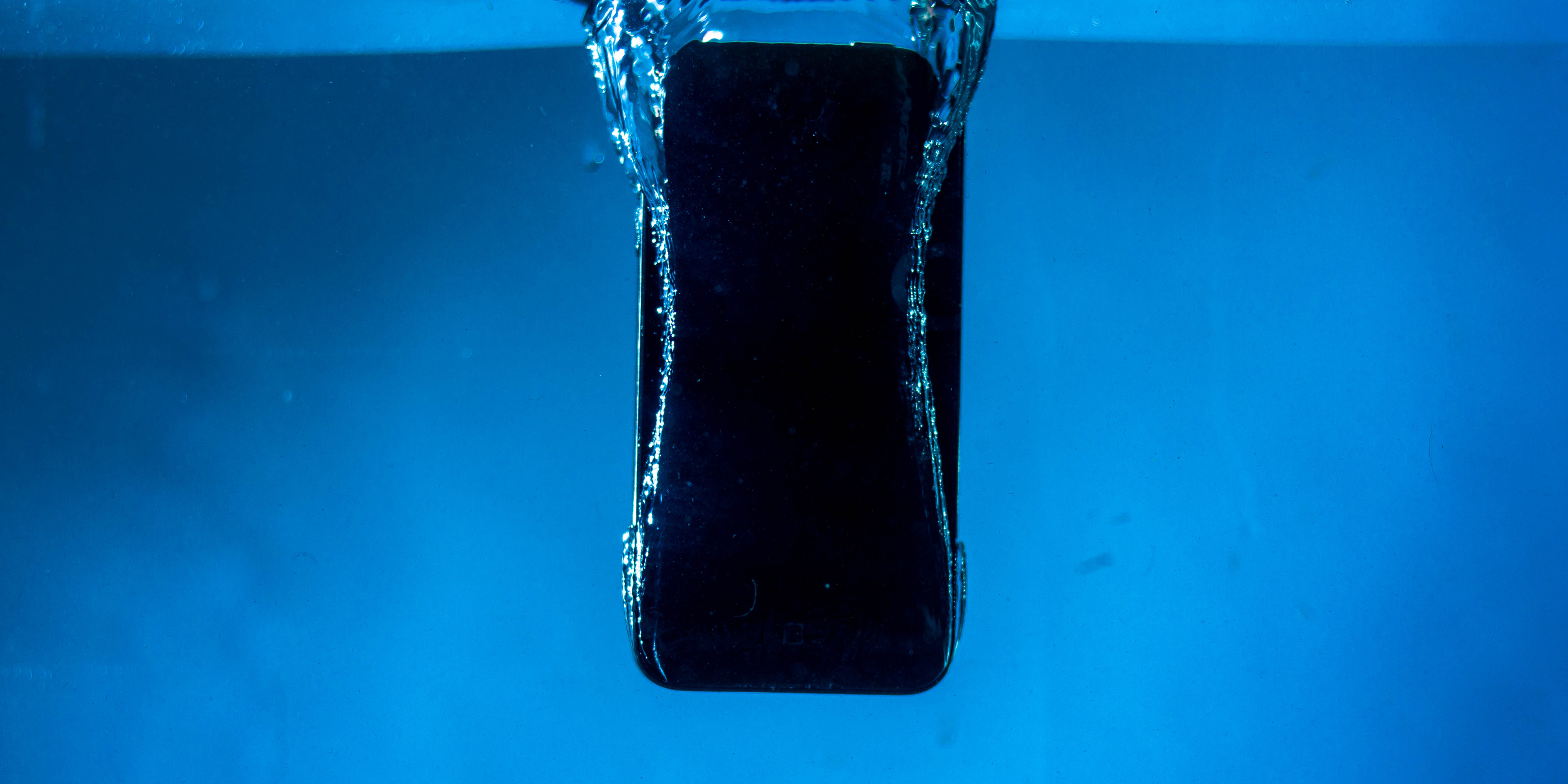
Accidentally dropped your phone in water? You’re not alone. One of the most urgent concerns for users in this situation is losing irreplaceable photos. At Reparation Tech, we regularly help customers recover valuable data from water-damaged phones. In this blog, we’ll walk you through safe and immediate steps you can take to recover your photos before the phone dries out or gets worse.
Disclaimer: The information provided is for educational purposes only. Attempting to recover data from a water-damaged device carries risks. If unsure, consult a certified technician immediately.
What Happens to Your Phone When It Gets Wet?
Water exposure impacts your phone in two major ways:
- Short circuits: Moisture may cause current to flow where it shouldn’t.
- Corrosion: The longer the internal parts stay wet, the more likely they’ll corrode and fail permanently.
That’s why immediate action is key if you want to recover data—especially your photos.
Immediate Steps to Take After Water Damage (Focus Keyword: Water-Damaged Phone Recovery)
1. Power Off the Phone Instantly
Don’t press buttons or check for damage. Shut it down to prevent short circuits.
2. Remove SIM Card and SD Card
Take out the SIM and microSD card (if available). The SD card may still store your photos safely even if the phone is soaked.
3. Avoid Shaking or Heating
Don’t use a hair dryer or microwave. It might push water deeper or melt components.
4. Gently Dry the Exterior
Use a lint-free cloth to dab excess water. Pay attention to the charging port, headphone jack, and speaker holes.
5. Don’t Plug It In
Charging a wet phone can lead to irreversible electrical damage.
If you’re unsure how to proceed, visit our Réparation d'un appareil page or stop by your nearest Emplacement.
Photo Recovery Options Before Drying (Focus Keyword: Recover Photos From Wet Phone)
✅ Option 1: Access the SD Card
If your photos were stored on a microSD card:
- Remove it and insert it into another device or card reader
- Copy the photo files to your PC or cloud storage
✅ Option 2: Use a USB Cable if It’s Safe
If the phone turns on briefly:
- Connect it to a computer using a USB cable
- Transfer photos quickly before it powers off again
⚠️ Only attempt this if the phone has no visible liquid and seems stable.
✅ Option 3: Try Google Photos or iCloud
Many phones automatically back up to the cloud, even without you realizing it. If your phone was synced prior to the damage, your photos may already be safe and accessible remotely. Here’s how to check:
- For Android Users (Google Photos):
- Visit Google Photos on a PC or another mobile device.
- Log in with the Google account linked to your damaged phone.
- Navigate through the timeline or search by album names.
- Download any photos you find.
- For iPhone Users (iCloud):
- Visit iCloud.com
- Log in with your Apple ID.
- Click on the “Photos” app inside the dashboard.
- Select and download the images you want to recover.
These cloud services often sync automatically when your phone is connected to Wi-Fi and charging. It’s one of the easiest and safest ways to recover your media without touching the damaged device.
For Android: Google Photos
For iPhone: iCloud.com
✅ Option 4: Data Recovery Software
Some tools can scan internal memory even on water-damaged phones:
- Dr.Fone (iOS/Android)
- Tenorshare UltData
- EaseUS MobiSaver
Use these only if the phone powers on. If unsure, let a professional at Reparation Tech handle it.
✅ Option 5: Professional Data Extraction
If the phone won’t turn on or the screen is dead:
- Bring your phone to our Tablet & Phone Repair team
- We use specialized tools to safely extract your files from dead or water-logged phones
When to Let Professionals Handle It
If any of the following apply, don’t attempt DIY:
- The screen is black or flickering
- The phone heats up or smells
- There’s visible water inside the screen or ports
Book a quote from our Devis instantané. page or stop by your nearest Emplacement.
We also offer:
- Réparation d’iPhone
- Réparation d’Android
- Réparation d’ordinateur
- Réparation d’Apple Watch
- Réparation de console de jeu
Best Practices to Protect Photos Going Forward
- Enable Cloud Backups – Turn on auto-backup to Google Photos or iCloud
- Use a Waterproof Case – Especially if you’re around pools, sinks, or beaches
- Invest in Device Insurance – To cover repair or replacement in case of accidents
- Transfer Photos Monthly – Back up your images to a PC or external hard drive
Conclusion: Don’t Wait Until It’s Dry
Time is critical. Acting fast after water damage may save your photos. From checking SD cards and cloud backups to using recovery tools or expert help—every minute matters. Still stuck? Let Reparation Tech help recover your memories.
FAQs
Q1: Can I recover photos if my phone won’t turn on?
A1: Yes, but only with professional data extraction tools. Visit Reparation Tech for safe assistance.
Q2: Will rice help recover photos from my phone?
A2: Rice might help dry moisture, but it won’t retrieve lost photos. Try recovery steps first.
Q3: Can I access cloud backups from another device?
A3: Yes! Just log into your iCloud, Google Photos, or backup account from a different device.
Q4: Is it safe to plug in a wet phone to retrieve photos?
A4: No. Only plug it in if you’re 100% sure it’s dry. Otherwise, get it checked first.
Q5: What if I tried drying the phone and it still won’t turn on?
A5: Bring it to us. We can evaluate it and extract files if possible using professional equipment.
 French
  English