
Written by Lucas Mason
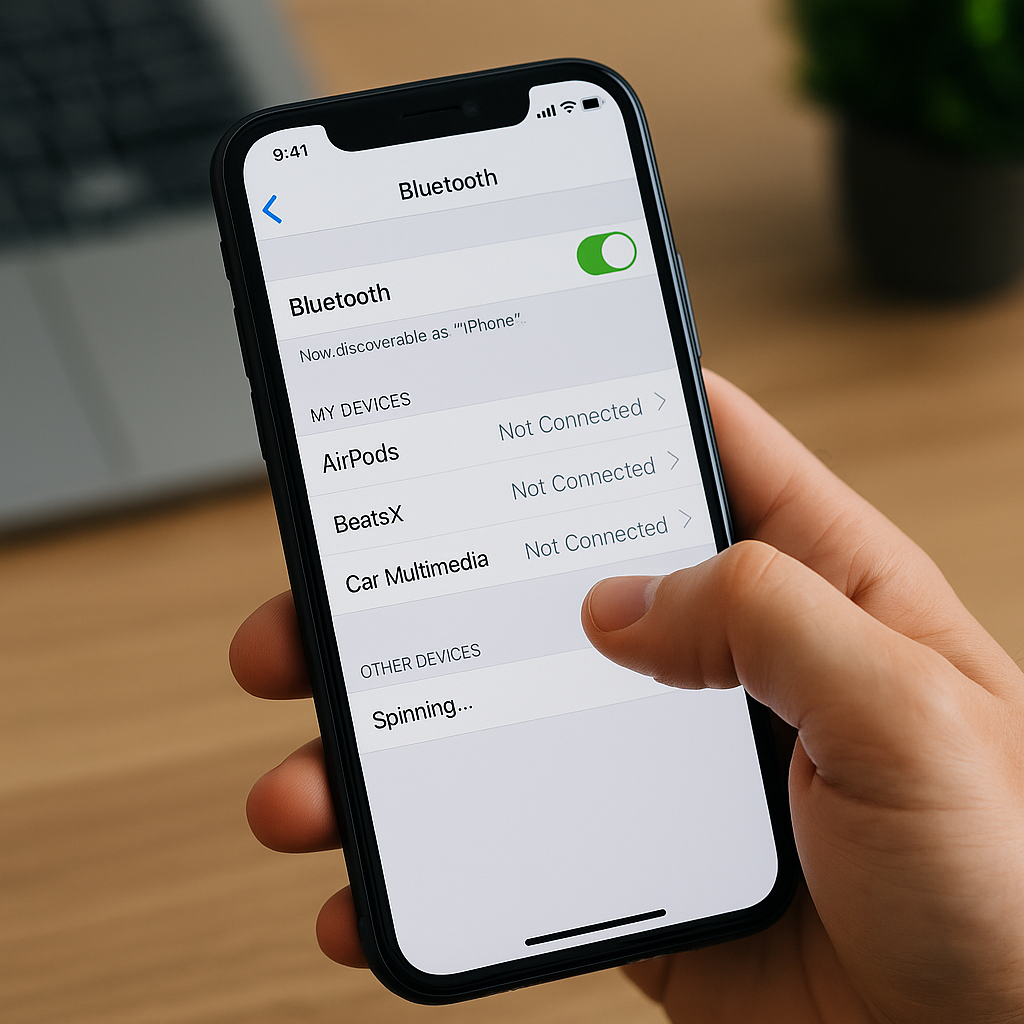
Bluetooth keeps your digital life connected—wireless earbuds, speakers, car stereos, smartwatches, and even tablets. But when your phone suddenly refuses to connect, it can be frustrating. Whether it’s an iPhone or Android, Bluetooth issues often come from small glitches, software conflicts, or hardware faults.
At Reparation Tech, we specialize in diagnosing and repairing smartphone connectivity issues across all major brands. Our certified technicians have helped hundreds of users in Montreal fix their Bluetooth pairing problems fast—without data loss or expensive replacements.
This guide explains why your phone fails to connect to Bluetooth devices, how to fix it step by step, and when it’s time to get a professional repair.
Section 1: Understanding the Bluetooth Problem
Bluetooth technology works by creating a short-range wireless network between your phone and another device. But this system depends on software stability, hardware health, and compatibility. When one of those elements fails, connection issues appear.
1.1 Common Symptoms You Might Notice
- Bluetooth device not showing up in your list.
- Pairing request keeps failing.
- Bluetooth disconnects randomly after connection.
- You hear distorted or low-quality audio.
- The Bluetooth icon disappears or won’t turn on.
If you’re seeing any of these, your phone’s Bluetooth module might be experiencing interference, software bugs, or a hardware fault.
You can always visit our Repair a Device page to book a quick diagnostic. Most connectivity repairs take less than an hour.
Section 2: Reasons Your Phone Won’t Connect to Bluetooth
Let’s look at the main causes—some are quick fixes, others need expert help.
2.1 Outdated Software
Both iPhones and Androids rely on firmware updates to maintain wireless stability. When updates are skipped, pairing issues appear.
Fix:
Go to Settings → Software Update → Install the latest version. Restart your phone after updating to refresh Bluetooth services.
2.2 Too Many Paired Devices
Most phones can remember only a limited number of Bluetooth pairings. Once that limit is reached, new devices may fail to connect.
Fix:
Delete old pairings.
- iPhone: Settings → Bluetooth → (i) icon → Forget This Device.
- Android: Settings → Connected Devices → Bluetooth → Forget Device.
2.3 Bluetooth Cache Corruption
Over time, cached Bluetooth data gets corrupted, which can stop devices from syncing properly.
Fix (Android):
Go to Settings → Apps → Show System Apps → Bluetooth → Storage → Clear Cache and Clear Data.
Fix (iPhone):
Reset Network Settings (Settings → General → Transfer or Reset iPhone → Reset Network Settings).
2.4 Hardware or Antenna Damage
A small chip or antenna handles Bluetooth inside your phone. Drops, liquid exposure, or internal damage can break this component.
In such cases, professional help is required. Our Buy a Device and Sell a Device pages also let you explore replacement options if repair isn’t feasible.
2.5 Interference from Other Devices
Microwaves, Wi-Fi routers, and even USB 3.0 cables can interfere with Bluetooth signals. Try turning off other nearby wireless devices and test again.
According to Apple’s official Bluetooth troubleshooting guide, connection failures can often be fixed by unpairing and re-pairing devices, ensuring both are within proper range, and keeping software up to date.
Section 3: Step-by-Step Fixes You Can Try at Home
Before rushing to a repair shop, try these practical steps. They solve most cases without needing tools or expertise.
Step 1: Restart Both Devices
A simple restart clears temporary memory issues. Power off both your phone and the Bluetooth device, then turn them back on.
Step 2: Ensure Both Devices Are in Range
Keep the phone and Bluetooth accessory within 3–5 feet. Avoid metal barriers or thick walls between them.
Step 3: Toggle Bluetooth Off and On
Sometimes the system just needs a reset.
- iPhone: Swipe down → Tap Bluetooth icon twice.
- Android: Quick Settings → Bluetooth toggle off/on.
Step 4: Unpair and Pair Again
Remove the device, then re-add it.
If it still fails, go to your Bluetooth settings and ensure the device is in “pairing mode.”
Step 5: Reset Network Settings
This clears Wi-Fi, cellular, and Bluetooth data (it doesn’t delete personal files).
Once done, reconnect to your devices manually.
Step 6: Boot into Safe Mode (Android Only)
If a third-party app is interfering, Safe Mode disables all apps temporarily.
If Bluetooth works fine there, uninstall recently added apps.
Step 7: Check for System Updates
Outdated operating systems cause 30–40% of connection issues. Always update before trying hardware repairs.
Section 4: When Software Fixes Don’t Work
If none of the steps above work, your phone may have deeper issues. These include:
- Bluetooth IC failure — the small chip managing signals.
- Motherboard damage due to drops or water.
- Firmware corruption beyond a regular update fix.
At this point, DIY fixes won’t help. Bring your device to Reparation Tech for expert testing. Our technicians use advanced diagnostic tools to detect faults quickly.
You can book a repair appointment or visit our Montreal location to get professional help immediately.
Section 5: Why Choose Reparation Tech for Bluetooth Repair
When your phone stops connecting, it’s not just a small problem—it affects how you work, drive, and communicate. At Reparation Tech, we offer more than quick fixes; we provide reliability.
5.1 Expert Technicians
Our specialists are trained to repair Bluetooth hardware at board level, including iPhone and Android models.
5.2 Same-Day Service
Most connectivity repairs are completed the same day.
5.3 Warranty on All Repairs
We stand behind every service. You’ll always receive a parts and labor warranty for peace of mind.
5.4 Fair Pricing and Transparency
No hidden costs. You’ll receive a clear diagnostic before any work begins.
5.5 Trusted in Montreal
You can learn more about our story and commitment on the About Us page or locate us via the Location page for in-person visits.
Section 6: Preventing Future Bluetooth Problems
Once fixed, you can keep your Bluetooth connection healthy with these tips:
- Avoid pairing too many devices simultaneously.
- Keep your software updated monthly.
- Don’t use your phone during charging—it causes heat buildup that can affect the antenna.
- Turn off Bluetooth when not in use.
- Keep your phone away from moisture and heavy impacts.
These small precautions extend your device’s life and keep your Bluetooth stable.
Section 7: Troubleshooting Common Bluetooth Accessories
7.1 Bluetooth Headphones or Earbuds
If your AirPods or Galaxy Buds won’t connect:
- Clean the charging case and pins.
- Check for firmware updates in their companion app.
- Try resetting the earbuds (most have a small button or touch combination for factory reset).
7.2 Car Bluetooth Systems
If your car won’t connect to your phone:
- Delete the old pairing on both the phone and the car system.
- Clear your call log and device list from your car’s infotainment system.
- Reboot the car stereo before trying again.
7.3 Smartwatches and Fitness Bands
These devices use constant Bluetooth signals. If the pairing fails:
- Update the companion app (e.g., Galaxy Wear, Fitbit).
- Reinstall the app if syncing keeps failing.
Section 8: When to Seek Professional Help
If your phone still won’t pair even after a full reset and software update, don’t force multiple pairing attempts. That can cause more system errors.
You might need a Bluetooth chip replacement, antenna repair, or motherboard micro-soldering—all available at Reparation Tech’s Montreal lab.
We recommend booking through the Repair a Device page or calling our team for an immediate assessment.
FAQs
Q1: Why does my iPhone fail to connect after an update?
A: System updates sometimes change Bluetooth configurations. Restart your phone, reset network settings, and try again.
Q2: Can Bluetooth be fixed without replacing parts?
A: Yes, most issues are software-based. However, if hardware damage is confirmed, a technician can replace only the faulty chip—no full board replacement is needed.
Q3: Is it safe to reset network settings?
A: Absolutely. It only deletes Wi-Fi passwords and paired Bluetooth devices, not personal data.
Q4: What if my Bluetooth works with some devices but not others?
A: That usually means compatibility issues. Try updating the accessory firmware or forgetting and re-pairing it.
Q5: Can I sell my old device if Bluetooth doesn’t work?
A: Yes. Visit our Sell a Device page—our team accepts devices with minor faults and offers fair trade-in value.
Disclaimer
This article is intended for informational purposes only. The methods described are general troubleshooting steps. If your phone continues to malfunction, please consult certified professionals like Reparation Tech to avoid further damage.
 English
  French