
Written by Lucas Mason
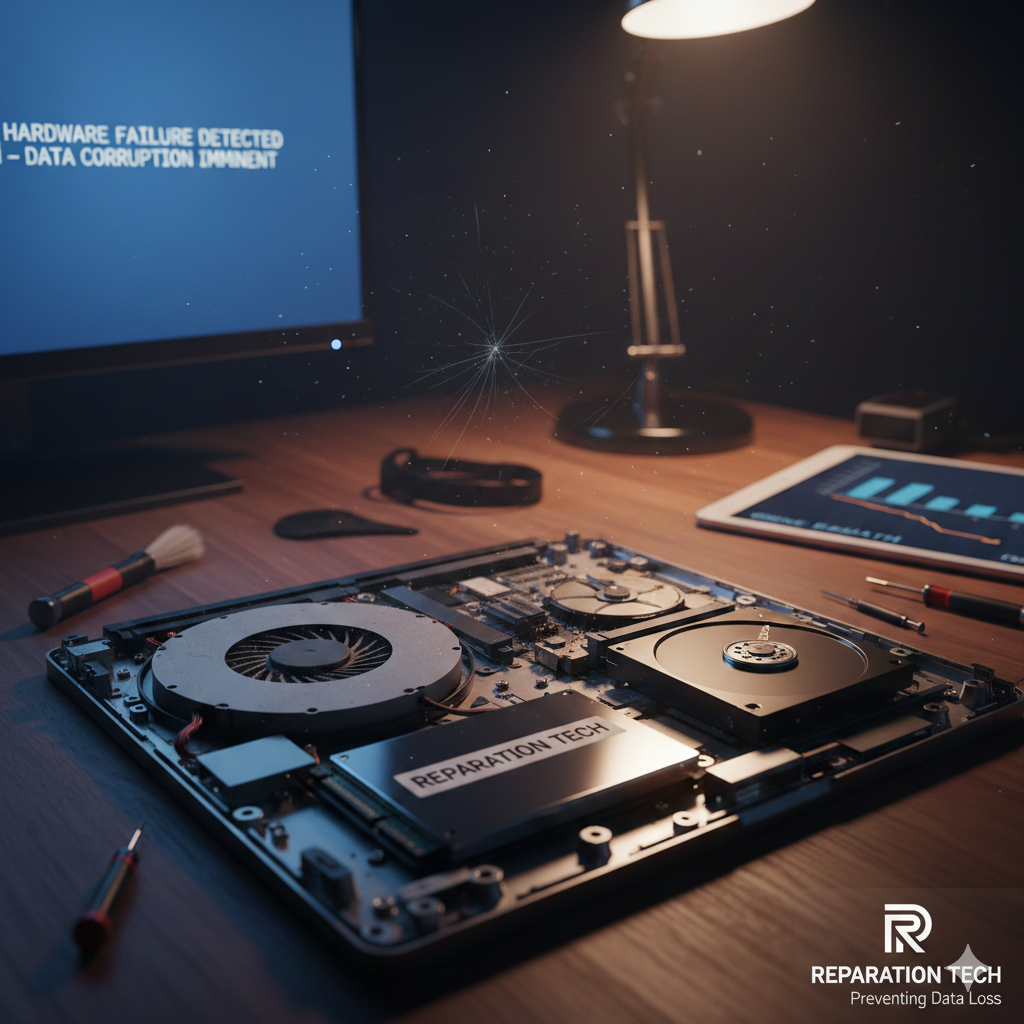
We live in an era where our entire lives—our finances, our careers, our family memories—are stored on silicon chips and spinning platters. We carry these devices in our pockets and toss them into backpacks, often forgetting that beneath the sleek glass and aluminum lies a complex, fragile ecosystem of hardware.
At Reparation Tech, we see the aftermath of “I’ll fix it tomorrow.” We see the small business owner who lost five years of bookkeeping because a hard drive started clicking and they ignored it. We see the student whose thesis disappeared because their laptop kept overheating until the motherboard fried.
This isn’t just a technical issue; it’s a YMYL (Your Money Your Life) issue. When your hardware fails, your digital life is at stake. As experts with years of hands-on experience in the repair industry, we’ve put together this deep-dive guide to help you recognize the warning signs before the screen goes black for good.
Section 1: The Anatomy of Failure – Why Hardware Dies
Before we get into the signs, we need to understand that hardware has a shelf life. No matter how much you paid for your MacBook or your custom gaming PC, physics eventually wins.
The Bathtub Curve of Hardware Failure
In engineering, we talk about the “Bathtub Curve.” This suggests that hardware is most likely to fail either very early in its life (due to manufacturing defects) or very late in its life (due to wear and tear). According to extensive longitudinal studies by Backblaze, hard drives generally have a “honeymoon period” before failure rates begin to climb steadily after the 36-month mark.
Mechanical vs. Solid State
It is a common misconception that newer Solid State Drives (SSDs) are invincible because they have no moving parts. While they are more durable than traditional Hard Disk Drives (HDDs), they have a limited number of “write cycles.” Every time you save a file, the drive gets a tiny bit closer to its end. Understanding this is crucial for your long-term data strategy.
Section 2: The 5 Critical Red Flags (Deep Dive)
1. The “Blue Screen of Death” and Kernel Panics
When your operating system (Windows or macOS) encounters an error it cannot recover from, it shuts down to protect your data. If this happens once every six months, it might be a bad update. If it happens once a week, your hardware is screaming for help.
- The Culprit: Usually failing RAM (Random Access Memory) or a dying Power Supply Unit (PSU). RAM is like your computer’s short-term memory. If it develops “leaks” or physical defects, the computer loses its place and crashes.
- The Risk: Every time your computer crashes mid-write, you risk corrupting your system files, which can lead to a computer that won’t even turn on.
2. Auditory Warnings: Clicks, Grinds, and Whirs
Your computer should sound like a gentle breeze, not a coffee grinder.
- The Hard Drive Click: If you have an older laptop or desktop with an HDD, a rhythmic clicking sound is the “Click of Death.” It means the mechanical arm is hitting the platter. This is a physical emergency.
- The Fan Scream: A high-pitched whirring usually means a bearing in your cooling fan is failing. While a fan is cheap to replace at our Location, the heat it causes by failing can destroy your expensive CPU.
3. Software Slowdown (That Reformatting Won’t Fix)
We’ve all been told, “Just wipe it and start over” when a computer gets slow. But if you reinstall your OS and the computer is still sluggish, the problem isn’t software—it’s your storage drive.
- Bad Sectors: As drives age, physical parts of the disk become “unreadable.” Your computer will try over and over again to read that spot, causing the “spinning wheel of death” or extreme lag.
- SSD Throttling: If an SSD gets too full or too hot, its performance drops off a cliff.
4. Thermal Throttling and Excessive Heat
Heat is the #1 enemy of electronics. Over time, the “thermal paste” (a goop that moves heat away from your processor) dries up and turns into dust.
- The Sign: Your laptop keyboard feels uncomfortably hot, or your phone screen dims automatically and says “Device needs to cool down.”
- The Prevention: Regularly cleaning your vents. If you aren’t comfortable opening your device, it’s best to Repair a Device through a professional who can re-apply thermal paste and blow out the internal dust.
5. Visual Artifacts and Glitches
If you see pink lines, “snow,” or flickering blocks on your screen, your Graphics Processing Unit (GPU) is likely de-soldering itself from the motherboard due to heat cycles.
- The Warning: This often starts small—maybe just a flicker during a video—but it always ends with a black screen.
Section 3: Professional Strategies for Data Protection
If you suspect your hardware is failing, follow the “Reparation Tech Protocol”:
- Immediate Backup: Do not try to “clean” the computer or run “fix-it” software. Every second the drive is spinning, it is wearing down. Move your most important files (Photos, Tax Returns, Work) to a cloud service or external thumb drive immediately.
- The 3-2-1 Rule: As recommended by the Cybersecurity & Infrastructure Security Agency (CISA), keep three copies of your data on two different types of media, with one copy stored off-site.
- Check Your S.M.A.R.T. Status: Most modern drives have a self-monitoring system called S.M.A.R.T. You can use free tools to check this. If it says “Caution” or “Bad,” stop using the drive.
- Know When to Fold ‘Em: Sometimes, a repair is more expensive than the machine. In those cases, it is smarter to Sell a Device for parts and use that money toward a new one from our Shop.
Section 4: Why Expert Intervention Matters (EEAT)
Repairing modern electronics isn’t like fixing a toaster. Modern laptops use “integrated” components, meaning the RAM, CPU, and Storage are often soldered onto a single board. A mistake during a DIY repair can turn a $100 fix into a $1,000 replacement.
At Reparation Tech, we pride ourselves on transparency. You can Track a Repair in real-time, so you know exactly what is happening with your data. Our technicians are trained in ESD (Electrostatic Discharge) safety and precision micro-soldering, ensuring that your device is handled with more care than a standard “big box” store would provide.
FAQs
Q: My laptop is only 2 years old. Can the hardware really be failing?
A: Yes. “Infant mortality” in electronics is real. A single power surge or a tiny manufacturing flaw in a capacitor can cause early failure. Check our About Us page to learn how we diagnose these early-life failures.
Q: Can I get a quote before I commit to a repair?
A: Absolutely. We offer an Instant Quote service so you can weigh the cost of repair against the cost of a new device.
Disclaimer
This content is for informational purposes only. Dealing with failing hardware involves electrical risks and potential data loss. We strongly recommend consulting with a professional before attempting any physical repairs or opening your device. Reparation Tech is not responsible for data loss resulting from DIY repair attempts.
 English
  French